
Article sections
How to Detect this Error
FB Auto Tool comes with a Logging feature that stores all of the errors encountered during a scheduled post. And to locate the error log, you need to Navigate to Posts > Scheduled Posts > And Click the Folder Icon at the right-hand side of the displayed table.
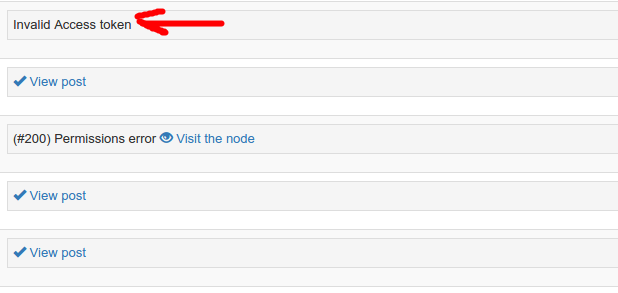
In the Log page, you will see the reason why your scheduled posts stopped running and if the error message seen is Invalid Access Token as shown in the image above, then read below to see how to fix,
How to Fix Invalid Access Token Error
The invalid access token error simply means the token for the selected app used for posting is expired and needs to be re-authenticated.
And to fix, all you need to do is Re-authenticate the current app used for posting.
[dt_quote type=”blockquote” font_size=”big” animation=”none” background=”plain”]To Re-authenticate, Goto Settings > Facebook Apps > Deauthenticate the App. And then click the Authenticate button again.[/dt_quote]
Enter your email/phone password then click on generate token and copy paste token . Then click on Set access Token.
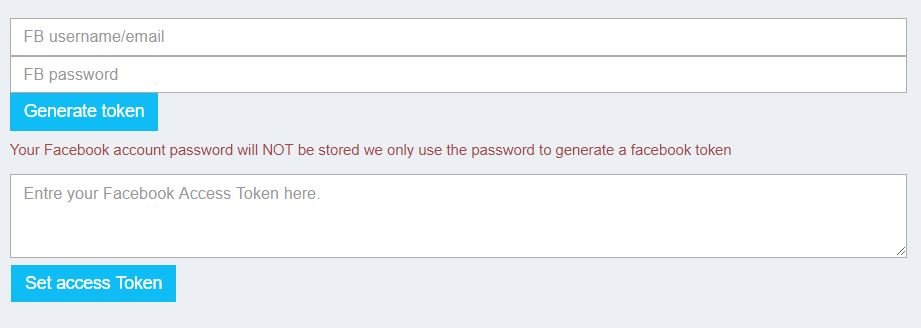
You have successfully re-authenticate your app. Now is time for you to resume the paused schedule or schedule a new post using your authenticated app.
Related Articles